How to Submit Mod Support Requests?
When you need support with Sims 4 mods, providing clear and detailed information is essential for a quick resolution. A well-prepared support request allows for faster and more accurate diagnosis. Incomplete or vague requests usually result in additional questions and unnecessary back-and-forth, which delays solutions for everyone involved.
Before You Submit a Support Request
Before reaching out for support, please make sure you have completed the following basic troubleshooting steps. This helps avoid unnecessary back-and-forth and ensures issues can be resolved faster.
Basic Checks
- Check the Mod Status Dashboard: Verify that the mod is marked as Compatible or Updated for the current game patch.
- Update the Mod: Make sure you are using the absolute latest version of the mod.
- Check Dependencies & DLC Requirements: Confirm that all required scripts (e.g. Smart Core Script) and necessary DLCs are installed.
- Clear the Game Cache: Delete the
localthumbcache.packagefile from your The Sims 4 folder. - Disable Cloud-Synced Mod Folders (OneDrive, etc.): Ensure your Mods folder is stored locally on your hard drive and not inside any cloud-synced directory, as mods must be loaded from a physical local path.
Rule Out Mod Conflicts
Before asking for help, make sure the issue is actually caused by this mod and not by conflicts with other mods or game settings.
- Test with Only This Mod: Run the game using only the problematic mod and its required dependencies.
- Identify the Source via Logs: Check error log files for script names or folder paths that indicate which mod is causing the issue.
- Confirm Game Version: Make sure your game is fully up to date, as outdated game versions can cause unexpected errors.
- Search for Existing Solutions: Check Google, forums, Discord servers, and mod comment sections to see if your issue has already been reported and resolved.
Where to Submit Error Requests
For the fastest and most effective support, Discord is the preferred platform for submitting error reports. Many common issues are already discussed there, so please check existing threads before opening a new request.
Comments on Patreon, CurseForge, and Itch.io are not suitable for technical support. These platforms make it difficult to keep an overview of issues and do not reliably support uploading log files or screenshots. As a result, important information often gets lost.
For errors, crashes, or script-related issues, always use the dedicated support channels on Discord so your request reaches the right place and can be handled efficiently.
Examples of Poor Requests
“Your shopping mod isn’t working. I did everything right and nothing happens!”
This tells me nothing. It does not explain what is broken, which mod is affected, which version is used, or whether any errors occur. Since many of my mods are related, it is also unclear which mod you are even talking about. Requests like this have zero diagnostic value and do not help anyone.
Essential Information for a Support Request
When submitting a support request, please include all of the following information.
- Game Version: Your current Sims 4 version (e.g. 1.110.xxx)
- Mod Name: Which mod is causing the issue
- Mod Version: The exact version you are using
- Download Source: Where you downloaded the mod (Patreon, CurseForge, Itch.io, etc.)
- Required Libraries: Installed script libraries and their versions (e.g. Smart Core Script, XML Injector, Lot51 Core)
- Problem Description: What exactly is happening, when it happens, and what you were doing when the error occurred
- Before or After Update: Whether the issue started after a game or mod update
- Additional Files: Screenshots, videos, or other relevant files
- LE Errors: Screenshots of orange LastException messages shown in-game
Log Files (Crucial for Script Mods)
Always attach relevant logs from your The Sims 4 folder, such as:
LastException.txtLastUIException.txt- MCCC logs
- Better Exceptions logs
- Smart Core Script logs
Why Logs Are Important
Logs contain detailed background information that is not visible in-game. They allow precise diagnosis of what went wrong and where.
Benefits of providing logs:
- Faster problem resolution
- More accurate diagnosis
- Fewer follow-up questions
- Less wasted time for both of us
Without logs, effective support is often impossible.
How NOT to Send Logs
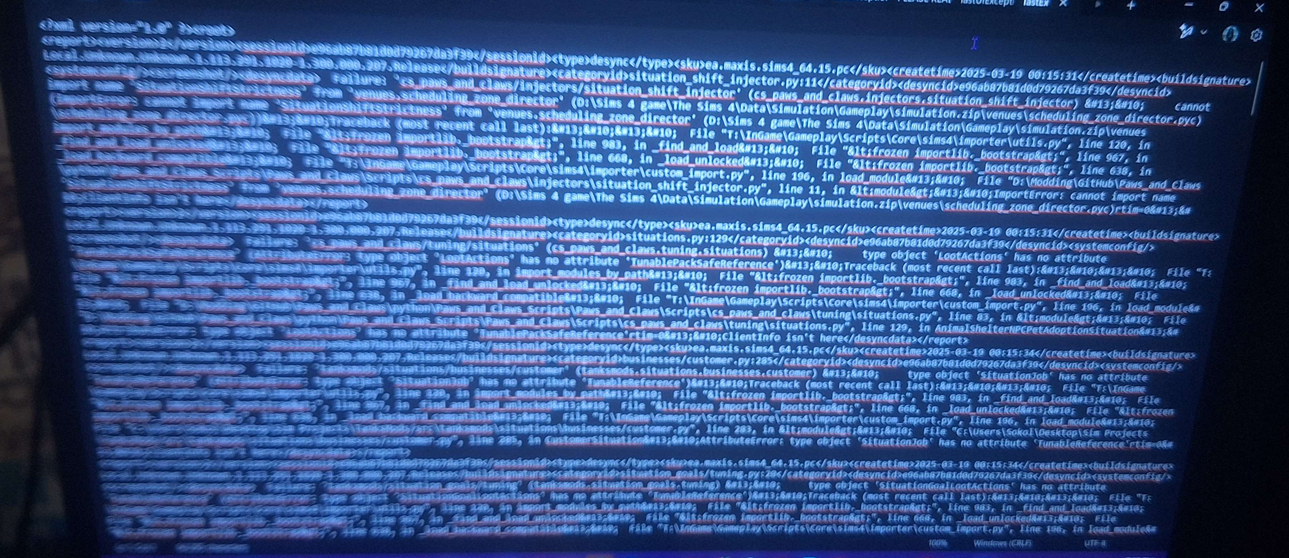
Never send logs as screenshots. Logs must always be shared as text files, not images. Screenshots of logs are unreadable, unsearchable, and completely useless for debugging.
Example of a Good Support Request
Hello! I have an issue with your SimSim Online Store mod version 5.0.0 downloaded from CurseForge. After installing it according to the instructions, I get an LE error every time I try to buy guitars via the artist items section. The selection menu never appears and the error occurs consistently. This only started after updating from version 4.9.7, which worked fine. I have attached the latest MCCC, Better Exceptions, and Smart Core logs, as well as a screenshot of the LE message. Thank you!
And Finally…
Before submitting a support request, double-check that you followed all installation instructions correctly. Roughly 95% of reported issues are caused by incorrect installation, missing dependencies, outdated versions, or mod conflicts.
Always test the suspected mod alone in a fresh save to rule out conflicts. If you suspect another mod is involved, tell me its name, version, and download source so I can test it properly instead of guessing.
Summary
Clear, detailed, and well-prepared support requests lead to faster and better help. By providing all relevant information upfront, you help streamline the support process and allow me to spend more time improving mods instead of extracting basic details.
Thank you for your cooperation and understanding.