How to Install Mods in Sims 4?
This guide will walk you through the process of installing mods for The Sims 4. Please read the instructions carefully to ensure a smooth modding experience.
Enable Mods in The Sims 4 Settings
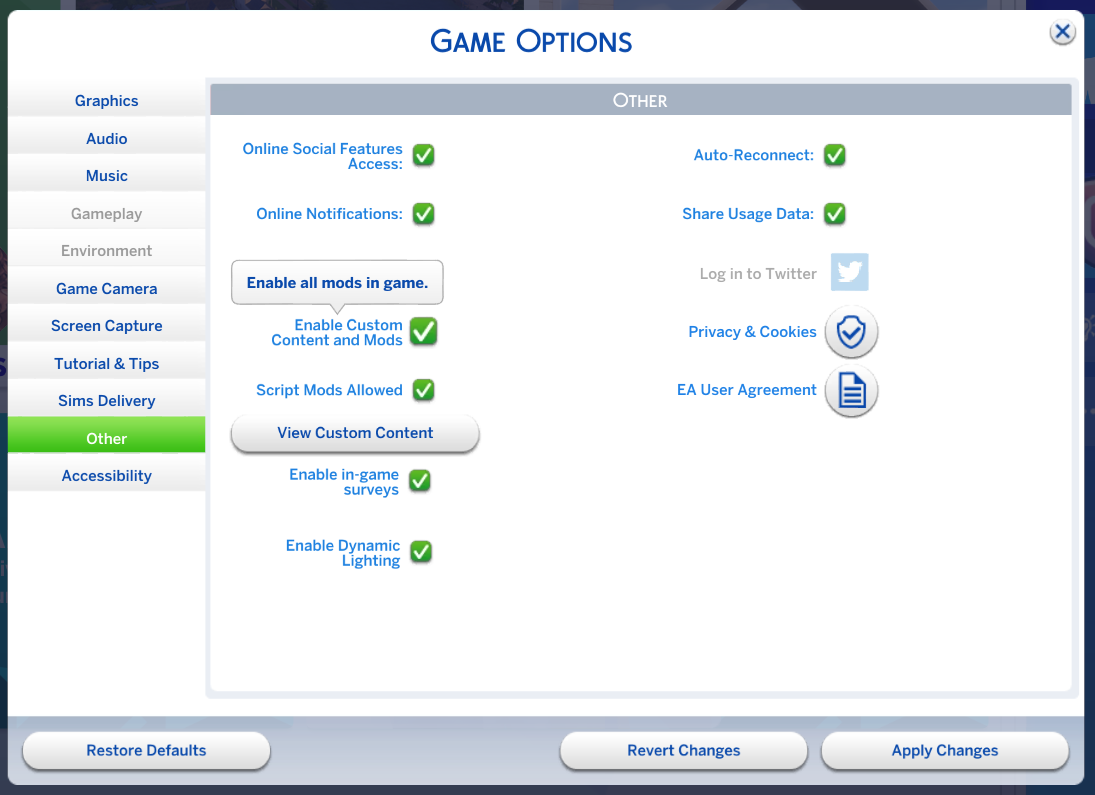
To use mods in The Sims 4, you first need to enable mod support within the game. To enable mods in The Sims 4, launch the game and go to the “Options” menu. Under “Game Options” and then “Other”, check the boxes for “Enable Custom Content and Mods” and, if needed, “Script Mods Allowed”. Apply the changes and restart the game. Your mods should now be active and available in the game.
Find and Download Mods
To enhance your The Sims 4 gameplay, it’s crucial to download mods from reputable sources. This ensures you’re getting high-quality and original content. Here’s how to find and download mods safely:
- Visit trusted platforms like CurseForge or the official blogs and websites of mod creators to ensure you’re downloading safe and high-quality mods.
- Avoid collector sites that steal and redistribute mods from other sources to ensure you’re obtaining authentic content.
Note: I distribute my mods exclusively on Patreon and CurseForge. Any versions found on other platforms are stolen copies, and I do not take responsibility for them. While some creators may use other platforms, I recommend sticking to Patreon and CurseForge for secure and authorized downloads.
After Downloading:
- Most mods come in a compressed format (like
.zipor.rar). You will need a program like WinRAR or 7-Zip to extract these files. - Extract the contents of the downloaded archive. Inside, you will typically find
.packagefiles,.ts4scriptfiles, or sometimes both.
Placing Mods in the Correct Folder
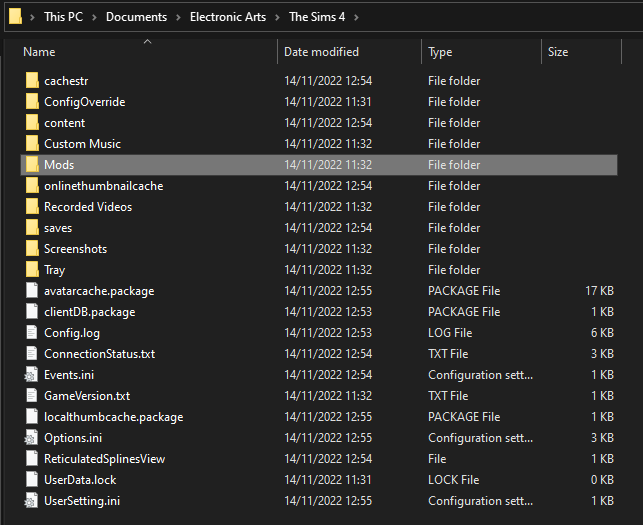
Once you have extracted your mod files, you need to place them into The Sims 4’s designated Mods folder.
The default path for this folder is:
Documents > Electronic Arts > The Sims 4 > Mods
Understanding Mod Types
Knowing the difference between mod types can help you troubleshoot issues.
- File Type: .package
- Description & Content: Tuning (e.g. Traits, Buffs, Interactions, Loots), Custom Objects (e.g. Furniture, Decor) & CAS (e.g. Clothing, Hair, Skin Details).
- Allowed Folder Depth: Unlimited — You can organize these into as many subfolders as you like for a better overview.
- File Type: .ts4script
- Description & Content: Script Files containing Python code required for mods that change how the game works. They are necessary to inject new menus, custom logic, or complex systems that standard game files cannot handle.
- Allowed Folder Depth: Max. 1 Level — These files must be placed either directly in the
Modsfolder or within exactly one subfolder.
Keeping Your Mods and Game Healthy
To ensure a smooth modding experience in The Sims 4, here are some final tips to keep in mind when installing mods:
- Backup Your Saves: Always back up your game saves before adding new mods. This protects your progress in case of mod-related issues.
- Keep Mods Updated: Regularly check for updates to ensure compatibility with the latest game patches. Outdated mods can cause bugs or crashes!
- Read Instructions: Carefully read the mod descriptions and any accompanying instructions. Some mods may require additional steps or dependencies.
Mods Security Risks
When modding The Sims 4, it’s essential to be aware of potential risks. Here’s what you need to know:
- Script Mods (
.ts4scriptfiles) are executable programs written in Python. They can enhance your Sims 4 gameplay by adding new features and interactions. However, because they are executable, there is a risk of these files containing viruses or malware if downloaded from untrustworthy sources. - To mitigate these risks, always download script mods from reputable sources. Check the reputation of the mod author before downloading. Established creators with positive feedback are more likely to provide safe and reliable mods.
- Unlike
.ts4scriptfiles,.packagefiles do not pose these security risks. They are safe to use and do not execute code, making them a simpler and safer option for customizing your game.